


As a student living in the heart of India’s Silicon Valley, I’m used to new tech buzzing around me. But most AI tools feel like a “Black Box”—you put a prompt in, and you hope the answer it spits out is actually true.
When I moved into my final years of college, the research papers got denser and the syllabus grew legs. I needed something that didn’t just “know things,” but knew my things. That’s when I discovered Google NotebookLM. It’s not just another ChatGPT clone; it’s a source-grounded research assistant that stays strictly within the boundaries of the documents you give it.
Here is why it has completely changed how I study, and how you can use it too.
1. The Power of “Source Grounding”
The biggest game-changer is Source Grounding. Standard AI pulls from the whole internet, which is why it often makes things up. NotebookLM only looks at what you upload.
How to start:
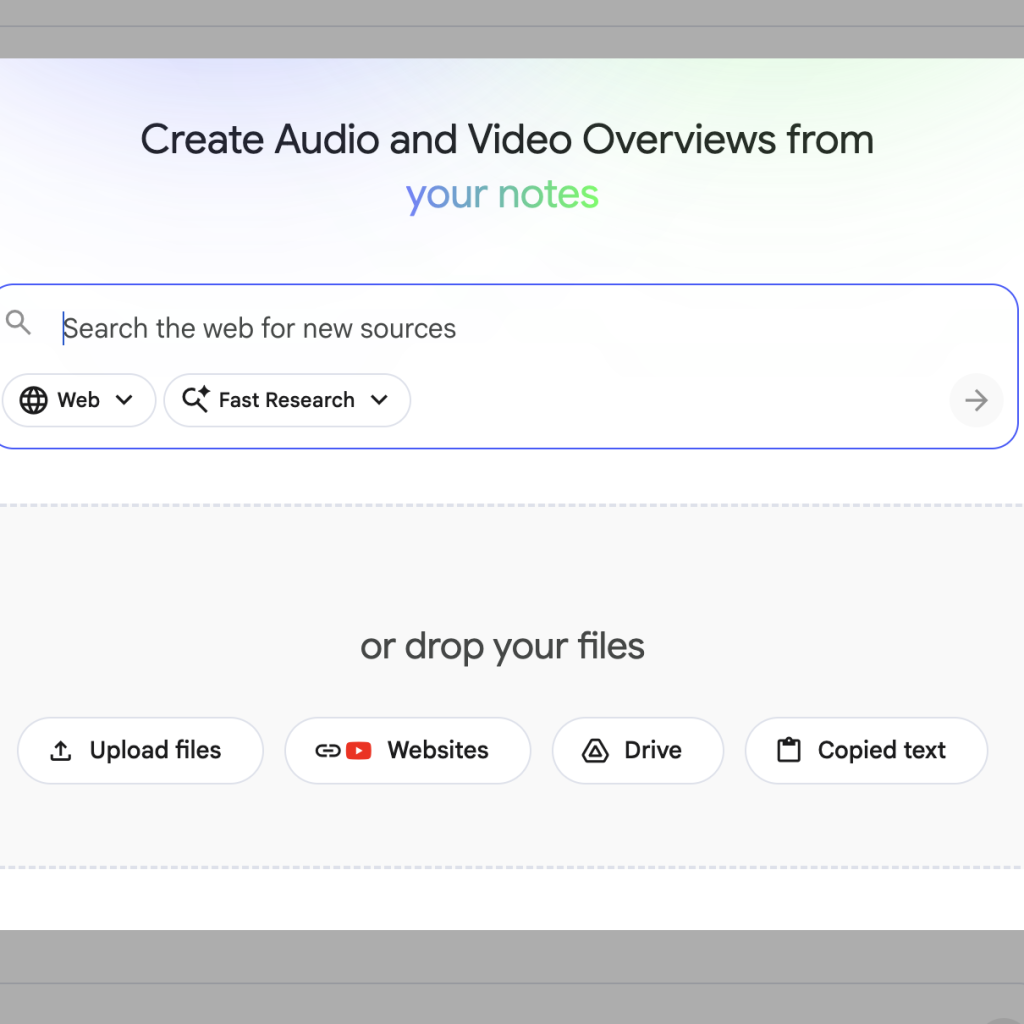
On the left-hand sidebar, you’ll see the Sources section. You can upload up to 50 sources per notebook, including:
- PDFs & Google Docs: Your textbooks and lecture notes.
- YouTube URLs: It will actually “watch” the video and transcribe the audio for you.
- Websites: Paste links to research articles or news reports.
Pro-Tip: I create a separate Notebook for every subject. One for ‘Macroeconomics’, one for ‘Modern History’. This keeps the AI from mixing up my notes!
2. The “Studio” Suite: Your Study Material Factory
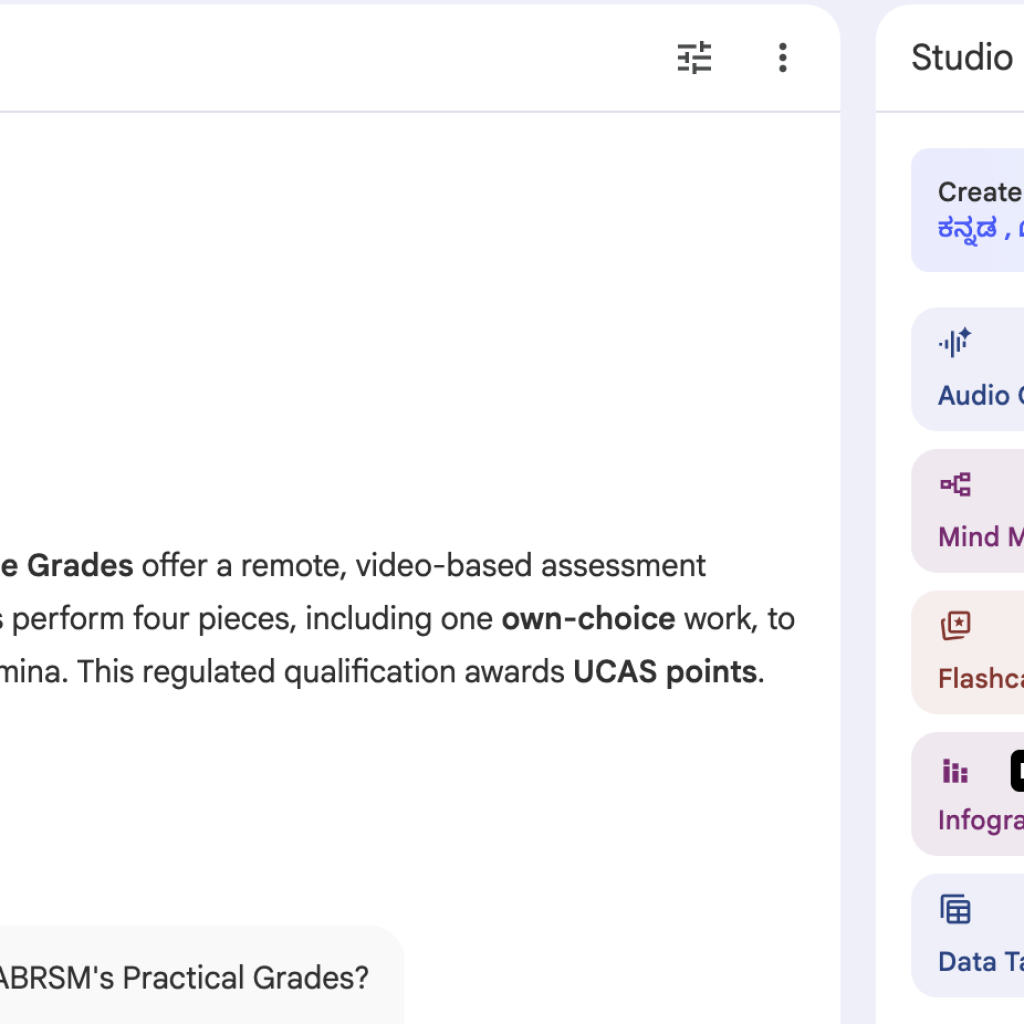
Once your sources are in, look at the Studio panel on the right. This is where the magic happens. With one click, you can generate:
- Flashcards & Quizzes: It creates custom practice tests based only on your notes. If you get an answer wrong, it shows you the exact page in your PDF where the right answer is.
- Study Guides: It will instantly create a structured outline of a 100-page textbook.
- Data Tables: New in 2026, you can ask it to “Compare the theories in Source A and Source B,” and it will build a clean table for you.
3. Audio Overviews: The “Podcast” Feature
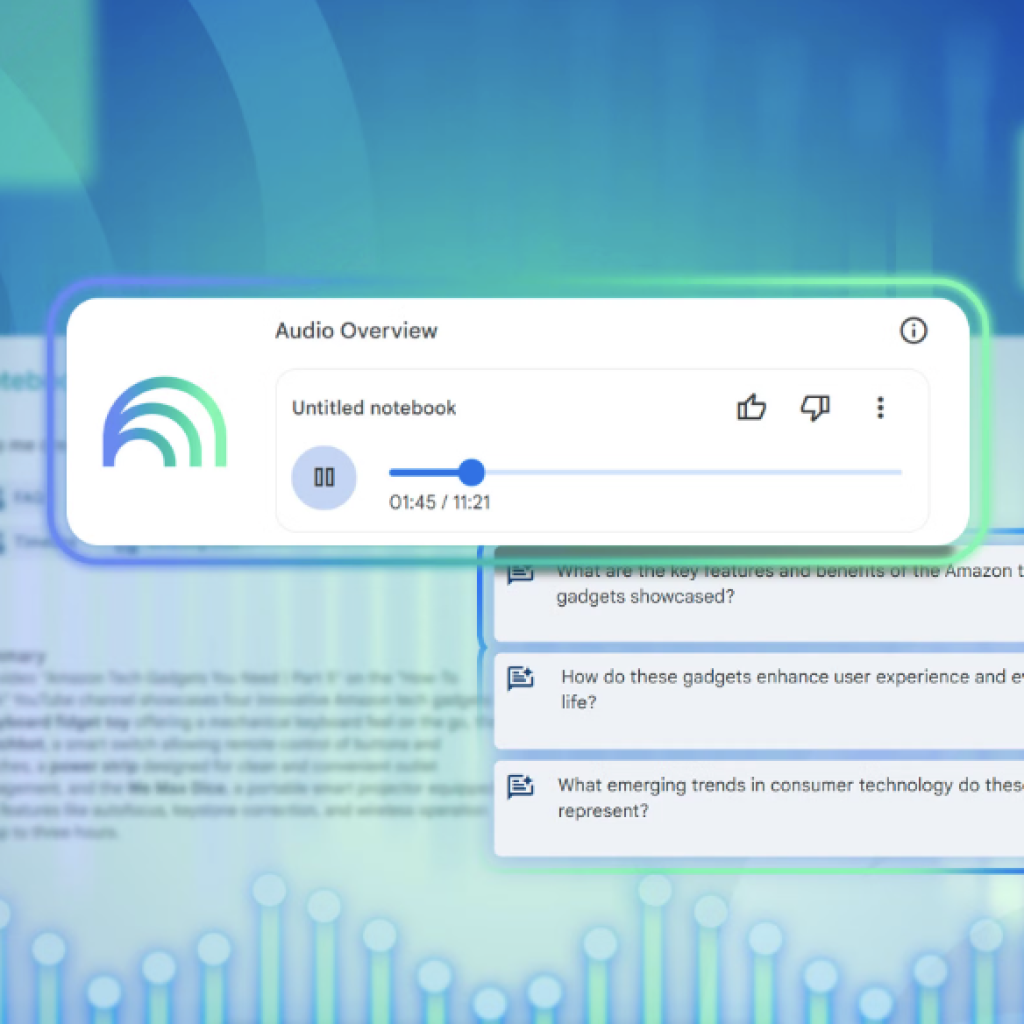
We’ve all had those days where we’re too tired to read. NotebookLM’s Audio Overview takes your dry, boring notes and turns them into a high-energy, two-person podcast.
The 2026 “Join” Feature:
Previously, you could only listen. Now, you can click the “Join” button. This allows you to interrupt the AI hosts! If they are discussing a concept and you’re confused, you can speak into your mic and say, “Wait, can you explain that part again with a better analogy?” and they will stop and answer you in real-time.
4. Chat with Citations: Never Lose a Reference
When you ask the notebook a question, like “What are the three main causes of the 1991 economic crisis mentioned in my notes?”, it doesn’t just answer. It gives you numbered citations.
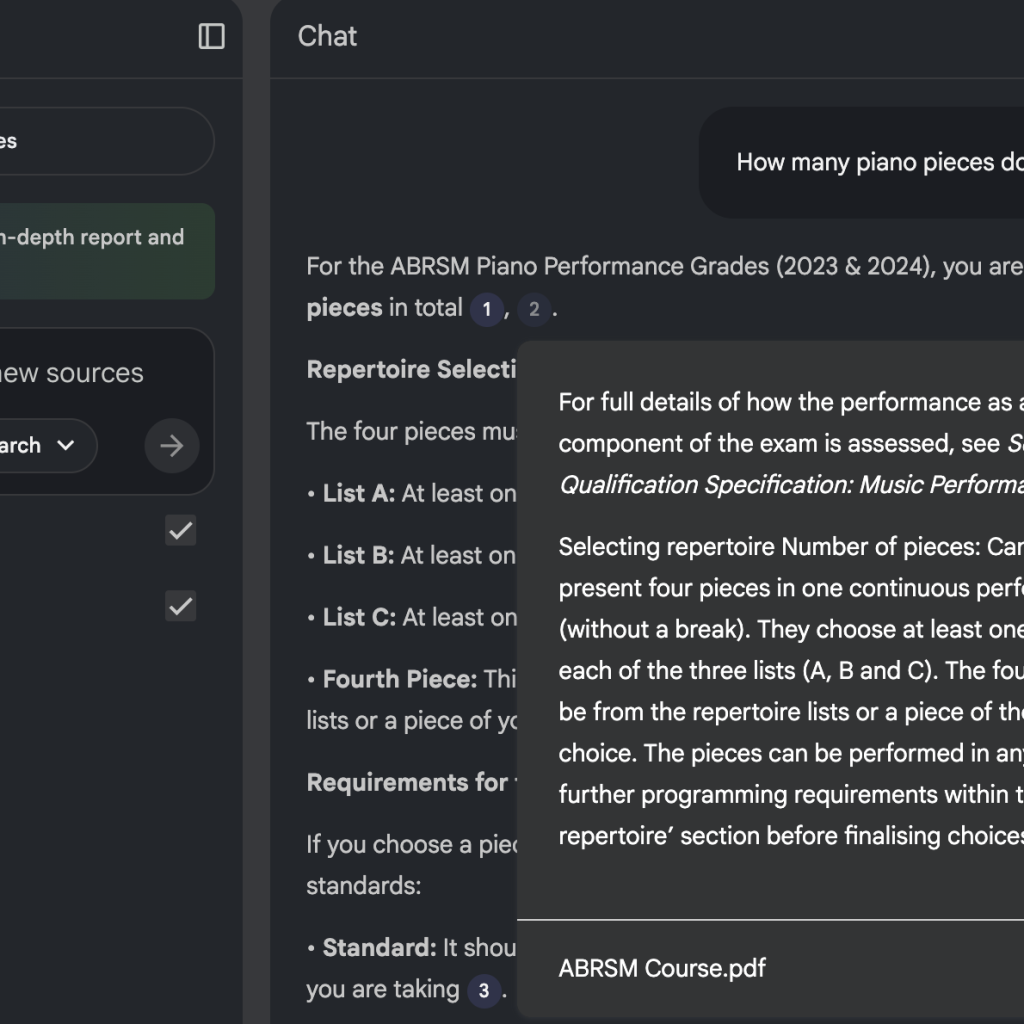
The “Deep Dive” View:
When you click a citation, the screen splits. On the right, it opens the exact source document and highlights the paragraph it used. This is a lifesaver for writing bibliographies and ensuring you aren’t accidentally plagiarizing.
How to Use It Smartly
- Garbage In, Garbage Out: Only upload high-quality sources. If you upload messy, half-written notes, the AI’s help will be messy too.
- Use it for Revision: Don’t let it write your first draft. Use it to check your draft for missing points or logical gaps.
- Collaborate: You can share a Notebook with your study group. Everyone can add sources and chat with the same “Brain.”
NotebookLM has moved me away from “searching” for information and allowed me to start “interacting” with it. For any student looking to level up their academic game, this is the first tab you should open every morning.


